

Fix Contract
This function uses two screens.
First screen

It shows the board to play data, as chosen by the Pair, Table or Board set number:
-
Sequential Number of the deal
-
Table where is playing
-
Board number
-
NS number and their color vulnerability
-
EW number and their color vulnerability
After the hand is played, you must choose the final Contract using the second screen, and also (except for All Pass or Referee Score)
- By whom
- +/- tricks
- Leading card
and then touch OK to compute the NS Score (i.e. positive or negative).
After OK it is still possible to correct the played contract, by whom, +/- tricks and leading card, until next board in invoked touching the ✓ button, that appear after OK is touched. You can also repeat the selection of the contract returning to second screen.
After that the score is confirmed, you pass to the next hand to bid.
Before starting bidding next hand, you can see the previous results, of the hand played so far, by the command  (see) in the top menu. The result are shown in the Table of Scores. Now you can also see the full score and bidding with the command
  (see).
With Return you go back to the Home Page, and you go and bid next hand with Continue!.
N.B. It is possible to go directly to any board, instead than to the next one. See the definition of Num field. To do this you must enter the Key, if it is enabled.
Second screen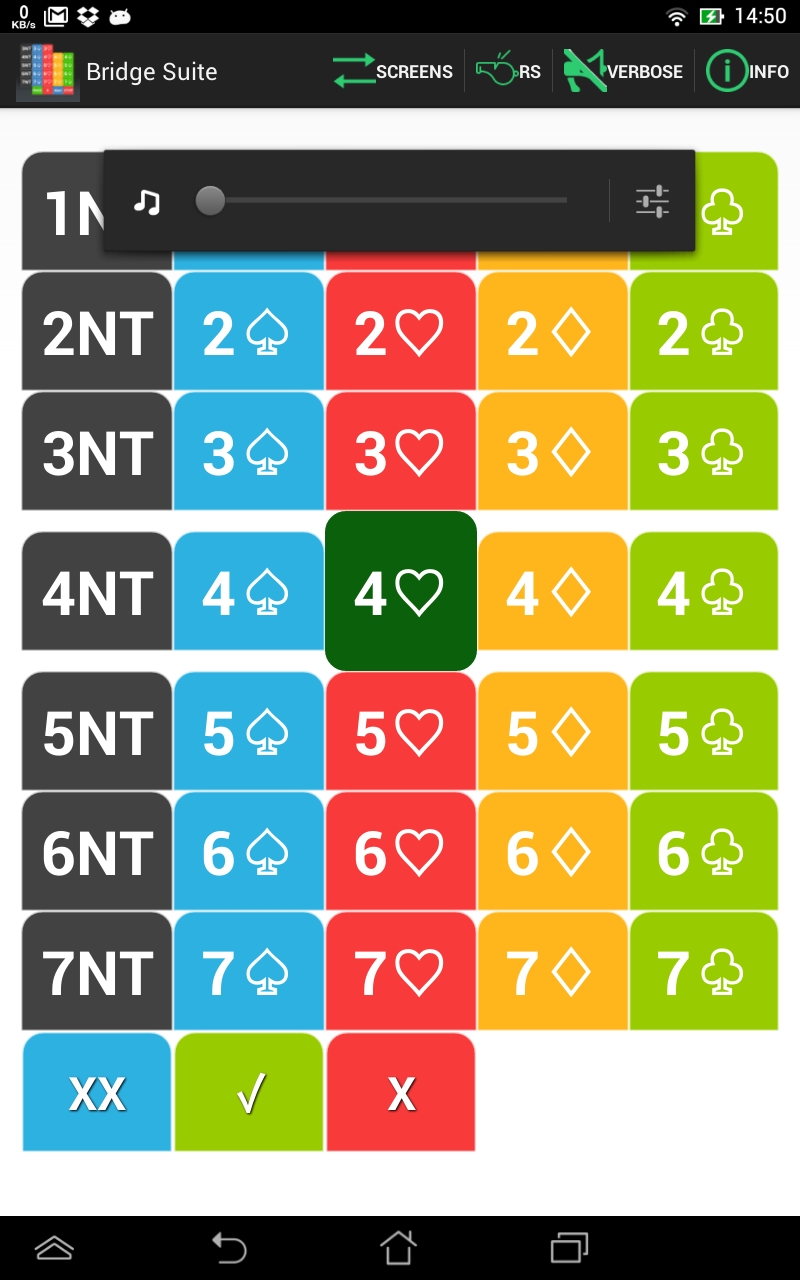
Touching the button below Contract: a second screen, an exact replica of the bidding box, cards appear.
When you touch the final bid button, it enlarge and the bottom buttons for confirm (✓), double (X) e redouble (XX) appear. As you touch one of them the contract selection is done and you return to the first screen.
If instead you touch any different contract button. the selection is reset and you can choose another contract.
Among the choices All Pass is included.
Referee Score
At any time during bidding  RS (Referee Score) can be selected in the top menu bar. A window is shown where a character string can be entered with a Referee Score admitted in the tournament.
The string content is not validated by the App and is copied as it is into the NS Score field and into the score file.
Guide messages
In addition to the two described screens some guide messages appear at the bottom of the screen.
They are cancelled by touching the screen.
The guide messages may be disabled with the Verbose command in the top bar menu.
Menu bars
There are three commands in the top menu bar, described in the Commands page


and the Android Return command, in the bottom menu bar. Return brings back to the Home Page